


Roku Screen Mirror & Cast TV
4.11.06K Reviews
App Specs
- Version
- 3.46
- Updated On
- License
- Free
- Downloads
- 1,000,000+
- Developer
- AirBeamTV BV
- Categories
- Productivity
- Platform
- Android
Screenshots
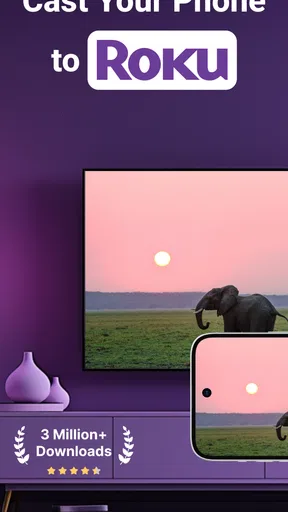
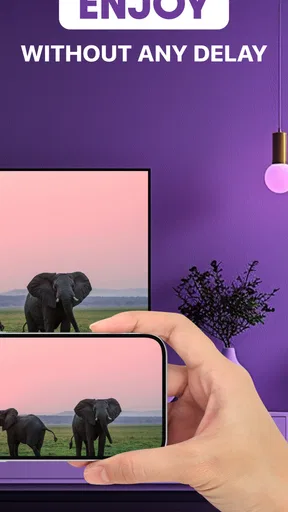
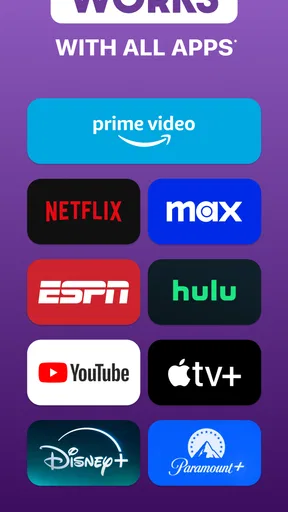
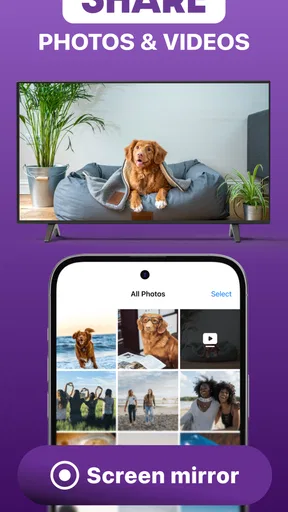
 Analysis by AppCompare
I often want to show something from my phone to other people without passing the phone around or hunting for a cable. That is the basic job I turn to Roku Screen Mirror & Cast TV for: moving a small-screen view onto a Roku-connected television. It is a productivity app from AirBeamTV BV, and its appeal is practical rather than elaborate. When the phone and TV are ready to work together, it can make sharing a photo, a web page, or a video feel much more natural.
When a phone screen needs a bigger audience
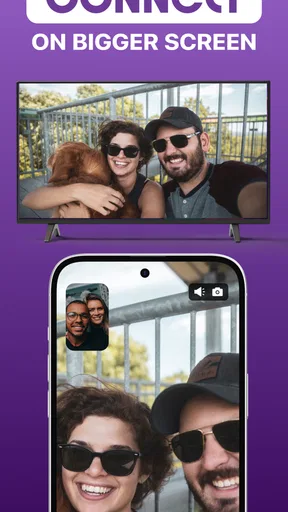
The app makes the most sense when the content starts on a phone and the people watching are already gathered near a Roku TV. Think of a family looking through travel photos, a friend asking you to show a recipe, or a quick work discussion where a page on your phone is easier to point out on a larger display. In those situations, mirroring saves the awkward shuffle of handing a device around.
I would not treat it as a replacement for every streaming app on the TV. If the show or film is already available through a Roku channel, opening that service directly on the television is usually the more dependable route. Mirroring is most useful when the material is already on your phone, when you want to browse a page together, or when you need to show something that does not have an obvious TV app.
A sensible routine before you connect
Before starting, I check that the phone and Roku are on the same Wi-Fi network. This small check is worth doing before troubleshooting anything else: if the devices are separated between networks, a discovery-based connection can fail even though both appear to be online. If the Roku does not show up, I would first confirm the network on each device and reopen the app rather than repeatedly tapping the connection button.
It also helps to decide what you want to show before beginning. For a short photo-sharing moment, select the pictures first; for a web page, open and prepare it on the phone. That reduces fiddling after the television is already displaying the session. A phone screen can contain notifications or private details, so I also silence distractions and close unrelated pages before mirroring when other people are watching.
Roku Screen Mirror & Cast TV is free to install, with in-app purchases ranging from $5.49 to $39.99 per item. I would try the basic workflow first and only consider a purchase if the app’s available options fit a repeated need. It is rated for Everyone, and the app has a 4.2 average from around 20,000 ratings, with more than 1 million installs. Those figures suggest it has found a sizable audience, but they do not guarantee that every phone, network, and Roku setup will behave identically.
Setting Up: Easy as Pie
Now, let’s talk about getting started. I was pleasantly surprised by how straightforward the setup process was. The app is available for both Android and iOS, so no one’s left out of the fun. Once downloaded, just make sure your device and Roku are on the same Wi-Fi network. A couple of taps here and there, and voila, you’re in business. The app automatically detects your Roku device, and all you have to do is click to connect. Seriously, it’s as simple as that.
Worth Reading Before You Choose

EA SPORTS FC Mobile 26 Is a Bigger Football Game, but It Takes Time

Flipboard Shows What News Apps Must Do Beyond the Feed

Switching to Android Auto Means Rethinking Your Driving Routine

Google Calendar Makes a Crowded Week Easier to Manage

Ludo King Makes the Most of the Minutes Between Plans

Baby Panda World Brings Quick Play to Modern Phones, but Its Game Library Feels Busy
Streaming Experience: Smooth Sailing
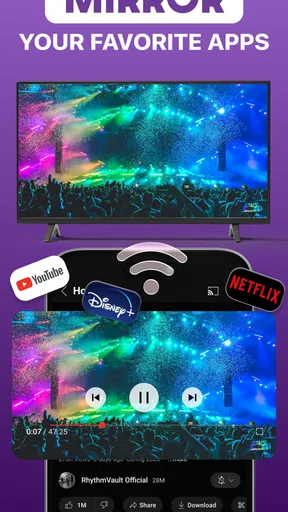
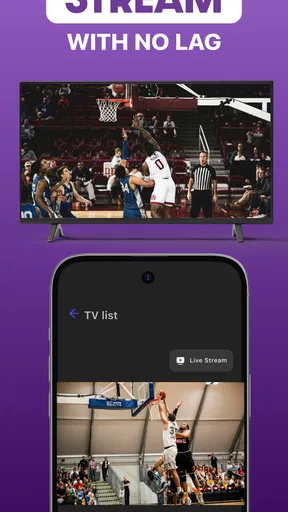
The most important part of any screen mirroring app is how well it actually mirrors, right? With Roku Screen Mirror & Cast TV, I was able to cast videos, music, and even games without any noticeable lag. The quality was crisp, and the audio was perfectly in sync. There’s nothing quite like watching your favorite YouTube videos or Netflix series on a big screen without any hiccups.
Interface and Usability
The app’s interface is clean and intuitive. You won’t find yourself lost in a maze of options. Everything is laid out clearly, and the icons are self-explanatory. This is a huge plus for those who aren’t exactly tech-savvy. Plus, the app offers a range of settings to tweak the quality and resolution according to your preference, which is a neat feature for those who like a bit of customization.
Features That Stand Out
One of the highlights for me was the ability to cast not just videos and photos but also entire web pages. Imagine browsing the web on your TV! The app also supports multiple formats, so whether it’s a video file or a music playlist, you’re covered. Another cool feature is the option to use your phone as a remote control, which is super handy.
Making the handoff feel natural
Moving from a phone to a television is more than a connection step; it changes how you interact with the content. I find a prepared handoff works better than trying to do everything from the couch. Choose the photo album, playlist, or page on the phone first, connect, then let the TV become the shared viewing surface. For a recipe, for example, I would open the instructions and scroll deliberately rather than trying to read a long page from across the room all at once.
That workflow also clarifies an important trade-off: the phone remains part of the experience. It is where I select or navigate what is being shown, so someone presenting a page may still need to stand near the phone or pass it to another person. If the goal is a group presentation, agree on who is controlling the phone before starting. It avoids interrupting the discussion every time someone wants to move to the next photo or section.
Photos, pages, and videos call for different expectations
Photos are among the easiest things to share because viewers can take their time with each image. A useful tip is to pick the pictures you actually want to show beforehand; scrolling through a large camera roll in front of everyone can turn a quick moment into a search session. For web pages, zoom and readability matter more than motion. A page designed for a phone may look small or crowded on a TV, so I would favor simple pages and scroll in short sections instead of expecting the television to behave like a desktop monitor.
Video is a different case. Mirroring sends the phone’s view to the TV, while a dedicated Roku streaming app plays content directly on the television. For a long film or series, the dedicated app is generally the better starting point: it avoids keeping the phone tied up and is designed for that viewing setup. I reserve mirroring for clips, personal videos, or material that is already on the phone and not convenient to open another way. This distinction is especially helpful when deciding whether a brief setup is worth it.
Where it fits among other ways to share
Compared with a cable, wireless mirroring is less restrictive about where I sit and is handy when I do not have the right adapter nearby. The trade-off is that it depends on the home network and the devices seeing each other. Compared with a Roku channel, mirroring is more flexible about phone content, but a channel is usually simpler for regular entertainment. And compared with sending a file to someone else, casting is better for a shared moment in the room, not for keeping a copy or collaborating later.
For a quick everyday example, imagine a relative asking about a place you visited. I would connect the phone, bring up a few selected photos, and let everyone view them on the television while I explain the route. If the conversation turns to a map or an article, I can switch to that on the phone and show it on the same screen. The advantage is not that the app replaces every other tool; it is that it can bridge several kinds of phone content in one visit without requiring each person to crowd around a small display.
What to check when connection or playback disappoints
If the Roku is not detected, start with the same-network check, then make sure both devices are connected to the intended Wi-Fi rather than assuming that any internet connection is enough. Relaunching the app and checking that the Roku is awake are reasonable next steps. If discovery still fails, restarting the devices or reconnecting to the network may help. I would avoid changing several settings at once, since it makes it harder to tell which adjustment solved the problem.
If the connection works but the picture feels uneven, consider what else is happening on the network and whether the phone is trying to do too much at the same time. Close unnecessary apps, keep the phone within a comfortable Wi-Fi range, and test with a still image before judging a video session. A photo can confirm that the basic handoff works, while a short clip gives a better sense of whether motion is acceptable for the task. For anything where timing is critical, such as a fast game, a direct TV app or another low-latency option may be preferable.
Who is likely to be happy with it
I would recommend trying this app if you often show phone-based material to people in the same room and your Roku is already part of your setup. It is particularly useful for casual photo sharing, quick web browsing together, and one-off clips that are awkward to locate through a TV service. The app’s current version is 3.11, and it supports devices running Android 10 or later, so checking the phone’s operating system before installing is a practical first step.
I would skip it if you mainly want a permanent, hands-free way to watch subscription programs, if your Wi-Fi is unreliable, or if you expect a phone game to respond exactly like a console on the TV. It is also not the best fit when you need to present sensitive content without careful preparation: mirroring can put more of the phone’s visible activity in front of the room than you intended. In those cases, a native TV app, a purpose-built presentation method, or a cable-based connection may suit the job better.
Streaming Experience: Smooth Sailing
The most important part of any screen mirroring app is how well it actually mirrors, right? With Roku Screen Mirror & Cast TV, I was able to cast videos, music, and even games without any noticeable lag. The quality was crisp, and the audio was perfectly in sync. There’s nothing quite like watching your favorite YouTube videos or Netflix series on a big screen without any hiccups.
Interface and Usability
The app’s interface is clean and intuitive. You won’t find yourself lost in a maze of options. Everything is laid out clearly, and the icons are self-explanatory. This is a huge plus for those who aren’t exactly tech-savvy. Plus, the app offers a range of settings to tweak the quality and resolution according to your preference, which is a neat feature for those who like a bit of customization.
Features That Stand Out
One of the highlights for me was the ability to cast not just videos and photos but also entire web pages. Imagine browsing the web on your TV! The app also supports multiple formats, so whether it’s a video file or a music playlist, you’re covered. Another cool feature is the option to use your phone as a remote control, which is super handy.
Compatibility and Performance
Compatibility is often a deal-breaker for many apps, but not here. It works seamlessly with a range of Roku devices, from the older models to the latest ones. Performance-wise, I didn’t encounter any crashes or bugs during my time using it, which is always a relief.
AirBeamTV BV released the app on October 18, 2022, and it sits in the productivity category, though its practical role is really focused on making phone content easier to share on a TV. I would think of it as a convenient bridge rather than a full home entertainment system. The free download lowers the barrier to testing that bridge, while the in-app purchase range is worth keeping in mind if you are considering using it often.
Ending Thoughts: Worth the Download?
If you’re looking to enhance your streaming setup with minimal fuss, Roku Screen Mirror & Cast TV is a fantastic choice. It’s easy to use, packed with features, and delivers a smooth casting experience. Whether you’re binge-watching your favorite series or showing off vacation photos, this app makes it all so much more enjoyable. So go ahead, give it a try, and elevate your screen time to a whole new level.
My recommendation is more specific: give it a try when you have a clear phone-to-TV task, rather than expecting it to improve every kind of watching. The strongest use is an informal handoff—your phone holds the material, and the Roku television gives everyone a comfortable view. For routine streaming, I would still start with the TV’s own apps; for sharing something personal or web-based, this is the more flexible option. That balance is what makes it useful without pretending it has no trade-offs.
Pros
- Easy to set up and use interface.
- Supports multiple devices seamlessly.
- High-quality video streaming.
- Compatible with various TV brands.
- No additional hardware needed.
Cons
- Limited free features available.
- Ads can be intrusive at times.
- Requires stable Wi-Fi connection.
- May lag on older devices.
- Some features locked behind paywall.
FAQs for Roku Screen Mirror & Cast TV
What is Roku Screen Mirror & Cast TV, and how does it work?
Roku Screen Mirror & Cast TV is an app that allows you to mirror or cast your smartphone or tablet screen to a Roku device. This means you can display photos, videos, apps, and more directly on your TV. The app utilizes wireless technology to connect your device to the Roku, offering a seamless viewing experience.
Can I use Roku Screen Mirror & Cast TV with any Roku device?
Roku Screen Mirror & Cast TV is compatible with most modern Roku devices. However, it's essential to check the app's compatibility list to ensure your specific Roku model supports screen mirroring. Older models may lack this functionality, so verify your device's specifications before downloading the app.
Is there any cost involved in using Roku Screen Mirror & Cast TV?
Roku Screen Mirror & Cast TV may offer a free version with basic features, but advanced functionalities might require a one-time purchase or subscription. It's advisable to review the pricing details within the app store to understand any costs associated with the premium features before downloading.
What are the main features of Roku Screen Mirror & Cast TV?
The app provides a variety of features, including the ability to stream videos, photos, and music from your device to your Roku-connected TV. It also supports live streaming and web video casting. Some versions may offer customizable settings to enhance the user experience, such as screen resolution adjustments.
Are there any known issues or limitations with Roku Screen Mirror & Cast TV?
Users may encounter connectivity issues if their devices are not on the same Wi-Fi network. Additionally, some content might not be cast due to digital rights management restrictions. It's important to ensure both your mobile device and Roku are updated to the latest software versions to minimize potential problems.


